

Licenses provide a simple way to unlock and manage additional system features for the XR650. All license activation and management is handled in Dealer Admin.
Depending on the feature, a license may require a one-time purchase or a recurring subscription. This section explains the available license types, how they work, and how to manage them in Dealer Admin.
For systems already added in Dealer Admin, recurring licenses renew automatically, so features remain active without manual reactivation. One-time licenses allow you to purchase a specific amount, or block, of additional users or doors.
Available System Licenses
|
One-Time Charge |
|
|---|---|
|
Feature |
Description |
|
32 Doors Add-On |
Toggle ON to add additional door capacity in blocks. Enter up to 2 blocks. Each block adds 32 doors, for up to 64 additional doors. The XR650 comes with 32 doors out of the box, allowing you to expand the system to support up to 80 doors. |
|
10K User Add-On |
Toggle ON to add additional user codes in blocks. Enter up to 29 blocks. The XR650 comes with 10,000 user codes out of the box, and supports up to 29 additional blocks, allowing you to expand the system to support up to 300,000 users. |
|
SCEP via 802.1x |
Toggle ON to automatically enroll and manage device certificates with SCEP for secure 802.1x network authentication. |
|
Entré |
Toggle ON to enable integration with Entré for centralized intrusion, access control, and system management. To use all available XR650 features with Entré, Entré firmware version X is required. |
|
Annual Charge |
|
|
Feature |
Description |
|
API Path |
Toggle ON to enable secure third-party integrations through the dedicated API communication path. In the API Port Certificate dropdown menu, select the appropriate certificate to enable this license. |
Activate a License
For Systems Not in Dealer Admin
-
Log in to Dealer Admin.
-
Go to Customers, then select the System Name.
-
In the menu, go to Tools > Licenses.
-
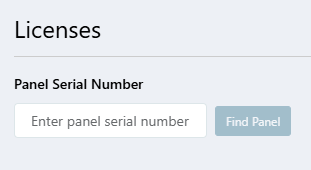
Enter the Panel Serial Number.
-
Enter the Contact Email.
-
Enable the licenses you want to use. See Available System Licenses.
-
Once you have selected the features you want to activate, go to Cost Summary.
-
Select Save & Download to download a billing file for the license to your computer. Use this file to upload the selected features to the panel through Entré or Remote Link.
Note: Recurring monthly features are not automatically renewed. When a subscription is nearing expiration, you are notified in Dealer Admin.
To renew a subscription, go to Tools > Licenses, enter the panel serial number, and renew the charge. Then, download the updated billing file and upload it to the desired location. Subscriptions are renewed annually.